Creating Agents
Creating a trading agent is the first step to automating your trading strategy. This guide will walk you through the simple process of setting up your first agent.
Quick Overview
When you create an agent, you only need to provide:
- Agent Name - A unique name to identify your agent
- Stop Loss Strategy - How the agent should protect positions
A simulation wallet is automatically created for testing. Configure a live wallet later when ready.
Don't worry about making the perfect choice! You can change your stop loss strategy and all settings later in Agent Configuration.
Step-by-Step Guide
1. Open the Create Agent Dialog
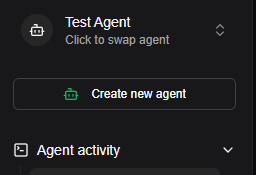
Click the "Create new agent" button in the sidebar:
The create agent dialog will open:
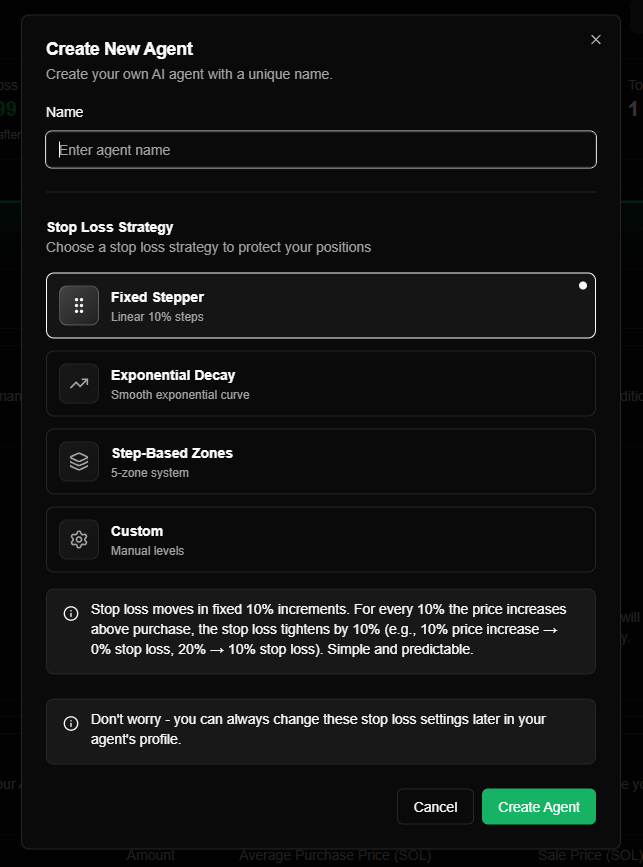
2. Enter Agent Name
In the Name field, enter a unique name for your agent:
| Requirement | Details |
|---|---|
| Required | Agent name cannot be empty |
| Maximum length | 255 characters |
| Examples | "My Trading Bot", "Conservative Strategy", "Aggressive DCA Bot" |
Choose a name that helps you identify the agent's purpose or strategy.
3. Select Stop Loss Strategy
Choose one of four stop loss strategies:
| Strategy | Description | Best For |
|---|---|---|
| Fixed Stepper | Linear 10% steps - stop loss always 10% behind price | Beginners, predictable behavior |
| Exponential Decay | Smooth exponential curve, loose at low gains, tightens as momentum builds | Balanced trading, volatile tokens |
| Step-Based Zones | 5-zone system with different protection levels per zone | Volatility-based trading, structured strategies |
| Custom | Manual discrete levels you define with full control | Advanced users, specific strategies |
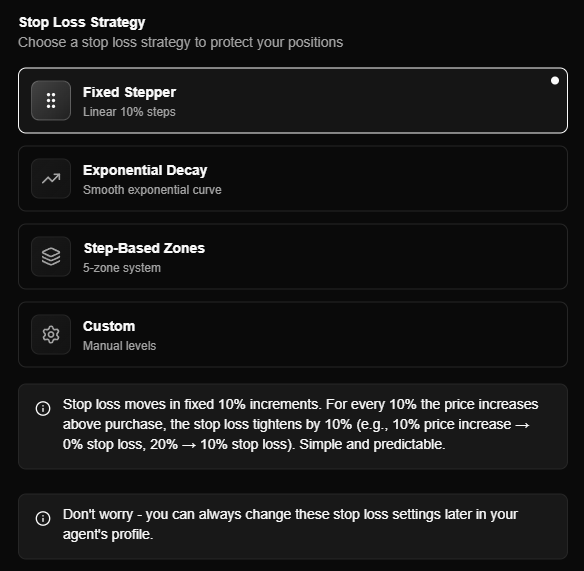
When you select a strategy, a brief explanation appears below:
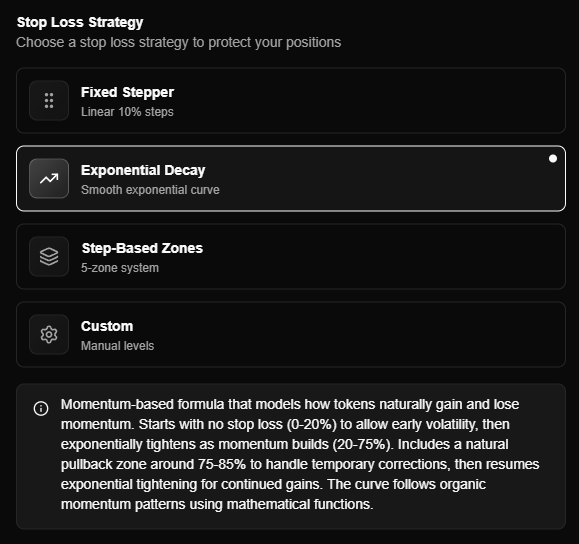
4. Create Your Agent
Click the "Create Agent" button. Your agent will be created with:
- Your chosen name
- Your selected stop loss strategy
- Default stop loss configuration (-32% default, mode-specific settings)
- A new simulation wallet (auto-created)
- Default trading settings (customizable later)
5. Agent Created!
After creation:
- The agent is automatically selected in the Agent Switcher
- You're redirected to the Performance Overview page
- The agent appears in your sidebar's Agent Switcher dropdown
Your agent is now ready to use! You can:
- View its performance on the dashboard
- Configure trading settings (stop loss, DCA, etc.)
- Set up a live wallet for real trading
- Start receiving and processing trading signals
Default Settings
When you create an agent, these default settings are applied:
| Setting | Default Value |
|---|---|
| Stop Loss | |
| └ Enabled | Yes |
| └ Default percentage | -32% |
| └ Mode | Your selected strategy |
| └ Trailing levels | Mode-specific defaults |
| DCA | |
| └ Enabled | Yes |
| └ Mode | Moderate |
| └ Cooldown | 1 hour |
| └ Max count | 3 |
| Trading Mode | |
| └ Default | Simulation |
| └ Live wallet | Not configured |
| Other Settings | Platform defaults |
What Happens After Creation
After creating your agent:
- Agent is selected - Automatically becomes the active agent in the dashboard
- Redirected to dashboard - Taken to Performance Overview page
- Simulation wallet created - Ready for testing with virtual funds
- Agent appears in switcher - Available in the Agent Switcher dropdown
You can now:
- View agent performance (currently empty - no trades yet)
- Configure trading settings (stop loss, DCA, etc.)
- Set up a live wallet for real trading
- Start sending trading signals to the agent
Multiple Agents
You can create multiple agents with different strategies:
| Feature | Details |
|---|---|
| Independence | Each agent operates independently |
| Wallets | Each agent has its own wallet (simulation and/or live) |
| Configuration | Each agent has its own configuration (stop loss, DCA, etc.) |
| Switching | Use the Agent Switcher to switch between agents |
Use cases:
- Test different strategies side-by-side
- Separate strategies for different token types
- Different risk profiles (conservative vs. aggressive)
Common Questions
Can I change the agent name later?
Yes! You can rename your agent in Agent Configuration.
Do I need to configure a wallet immediately?
No. A simulation wallet is automatically created for testing. Configure a live wallet later when ready for real trading. See Wallets for details.
How many agents can I create?
There's no hard limit on the number of agents you can create. However, due to Jupiter API limits, we suggest keeping it to 2-3 agents max for optimal performance. If you want to pay for a dedicated Jupiter service, you could run hundreds of agents.
Can I delete an agent?
Agent deletion is managed through your agent settings. See Agent Configuration for details.