Live Positions
The Live Positions table provides a real-time view of all open trades managed by your agent. Positions are updated automatically via WebSocket, showing current prices, profit/loss, and performance metrics.
Overview
| Feature | Description |
|---|---|
| Real-time Updates | Prices and events (create/close) update automatically without page refresh. |
| Performance Tracking | Live calculation of P&L, price change, and total position value. |
| Position Details | Click any row to view comprehensive transaction history and DCA data. |
| Manual Control | Ability to manually close positions before automated triggers (like stop loss) occur. |
| External Links | Quick access to DexScreener charts for every token held. |
Accessing & Filtering
Live positions are displayed on the Dashboard (Performance Overview) page.
- Navigate to Dashboard in the sidebar.
- Use the Agent Switcher to select the specific agent you want to monitor.
- Toggle between Simulation and Live modes in the header. The table updates automatically to show positions for the selected mode and its corresponding wallet.
Prerequisites: To see positions in Live mode, you must have an agent selected, a live wallet assigned, and a balance of at least 0.5 SOL.
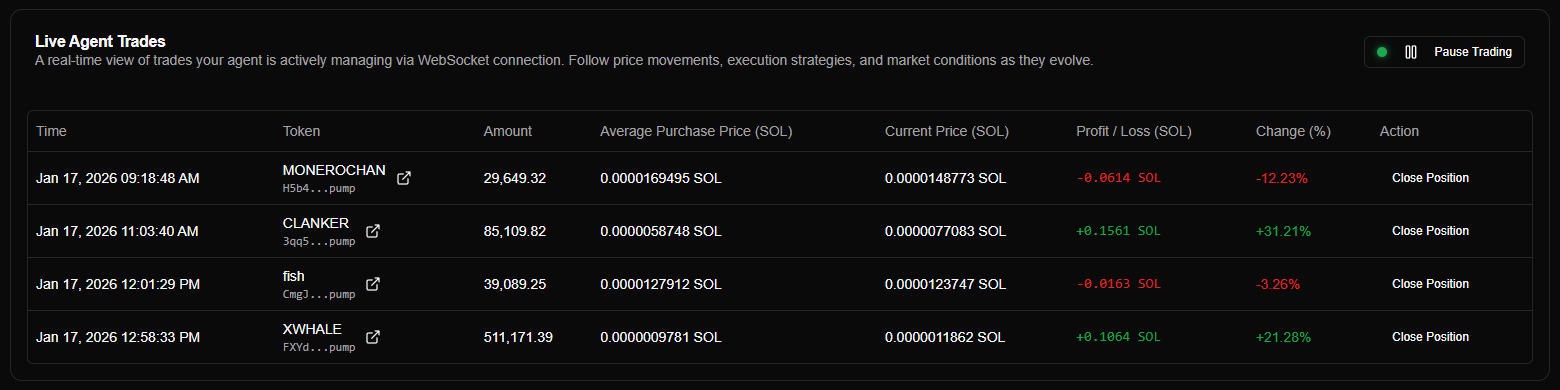
Real-Time Updates
The table uses a WebSocket connection to the backend for immediate updates:
- Prices: Highlighted briefly (green/red) when a price change occurs.
- Events: New positions appear and closed positions vanish instantly as the agent executes trades.
- Status: A connection indicator (green for connected, red for error) is shown above the table.
If the connection drops, the system attempts to reconnect automatically. You can also refresh the page to force a fresh connection.
Position Table Features
The table is designed to be responsive, hiding less critical columns on smaller screens while keeping essential data (Token, P&L, Action) visible.
Interacting with Rows
- Click Row: Opens the Position Detail dialog with a deep dive into the trade.
- DexScreener Icon: Opens the token's chart in a new tab.
- Close Position: Triggers the manual closure confirmation dialog.

Position Details
The detail dialog (accessible by clicking a row) is split into several sections:
| Tab | Information Provided |
|---|---|
| Information | Current price, P&L (realized + unrealized), trailing stop loss status, peak price, and take-profit progress. |
| Purchase | Original entry details including timestamp, swap route, fees, and transaction hash. |
| DCA History | A list of all dollar-cost averaging buys, showing how they affected your average price. (Only shown if DCA occurred) |
| Take-Profit Status | Progress through take-profit levels, realized profit, remaining tokens, moon bag status. (Only shown if take-profit is enabled) |
| Sell Transaction | Details of individual take-profit sales and final close. |
For positions with take-profit enabled, the Information tab shows combined P/L (realized from take-profit sales + unrealized on remaining tokens). The Take-Profit Status section shows detailed progress through configured levels.
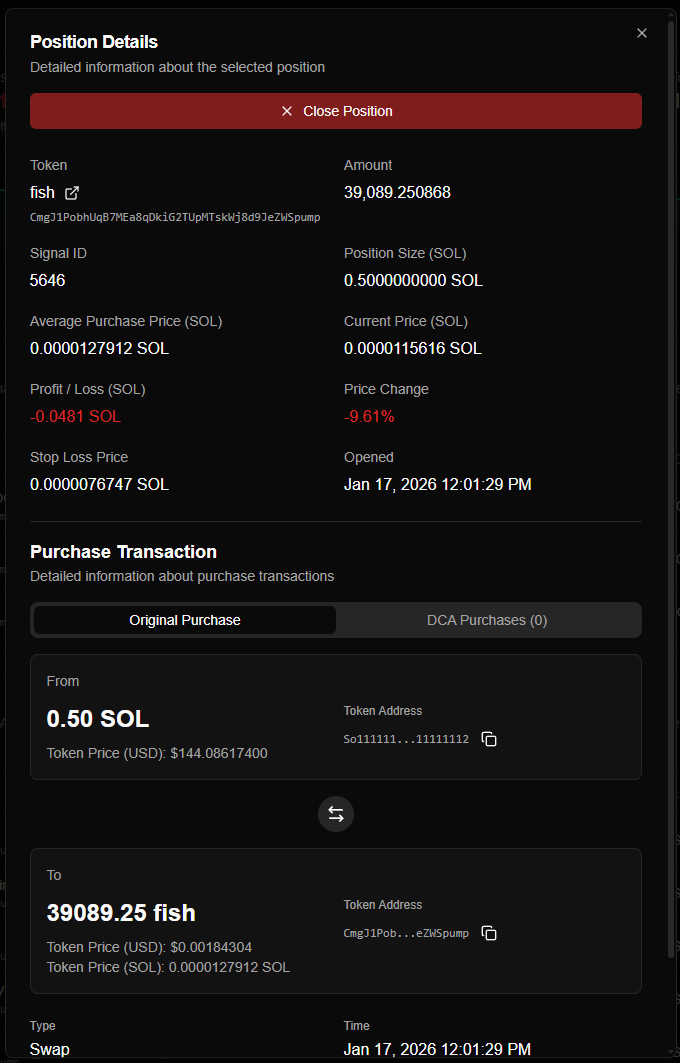
Closing Positions
You can override automation and close a position manually at any time.
- Click Close Position on the table row.
- Review the estimated P&L and token amount in the confirmation dialog.
- Confirm: The agent executes a sale immediately.
Permanent Action: Manual closure executes a real sale in Live mode. This bypasses stop loss logic and cannot be undone once confirmed.
Status & Troubleshooting
Why is the table empty?
- No Agent Selected: Use the switcher in the sidebar header.
- "Listening for signals": Your agent is ready and funded but hasn't found a trade matching your strategy yet.
- No Wallet/Funds: Ensure a wallet is assigned and has >0.5 SOL (for Live mode).
Connection Issues
If prices aren't moving or a "WebSocket error" appears, check your internet connection. The system highlights price changes for 1.5 seconds; if no highlights appear for a long time, the token price may simply be static or the connection may have timed out.
Performance Accuracy
P&L and Change % are calculated using the weighted average purchase price, which accounts for all DCA buys. USD values are estimated based on the current SOL price.
Best Practices
- Let Automation Work: Trust your configured stop loss and DCA settings. Manual intervention should generally be reserved for sudden strategy shifts or emergency fund retrieval.
- Monitor Trends: Use the P&L highlights to identify which tokens are trending and which are hitting resistance.
- Review DCA Impact: Periodically check the DCA History in the details dialog to see how well the agent is lowering your average entry price on dips.