Stop Loss Configuration
Stop loss is a critical risk management feature that automatically closes positions when prices drop to protect your investment. This guide explains how to configure stop loss settings for your trading agent.
Overview
Stop loss configuration consists of three main settings:
- Enable/Disable - Turn stop loss on or off
- Default Percentage - Starting stop loss used below 20% gain
- Stop Loss Mode - How stop loss trails upward as price increases
Access stop loss configuration in Agent Configuration > Trading Strategy > Stop Loss tab.
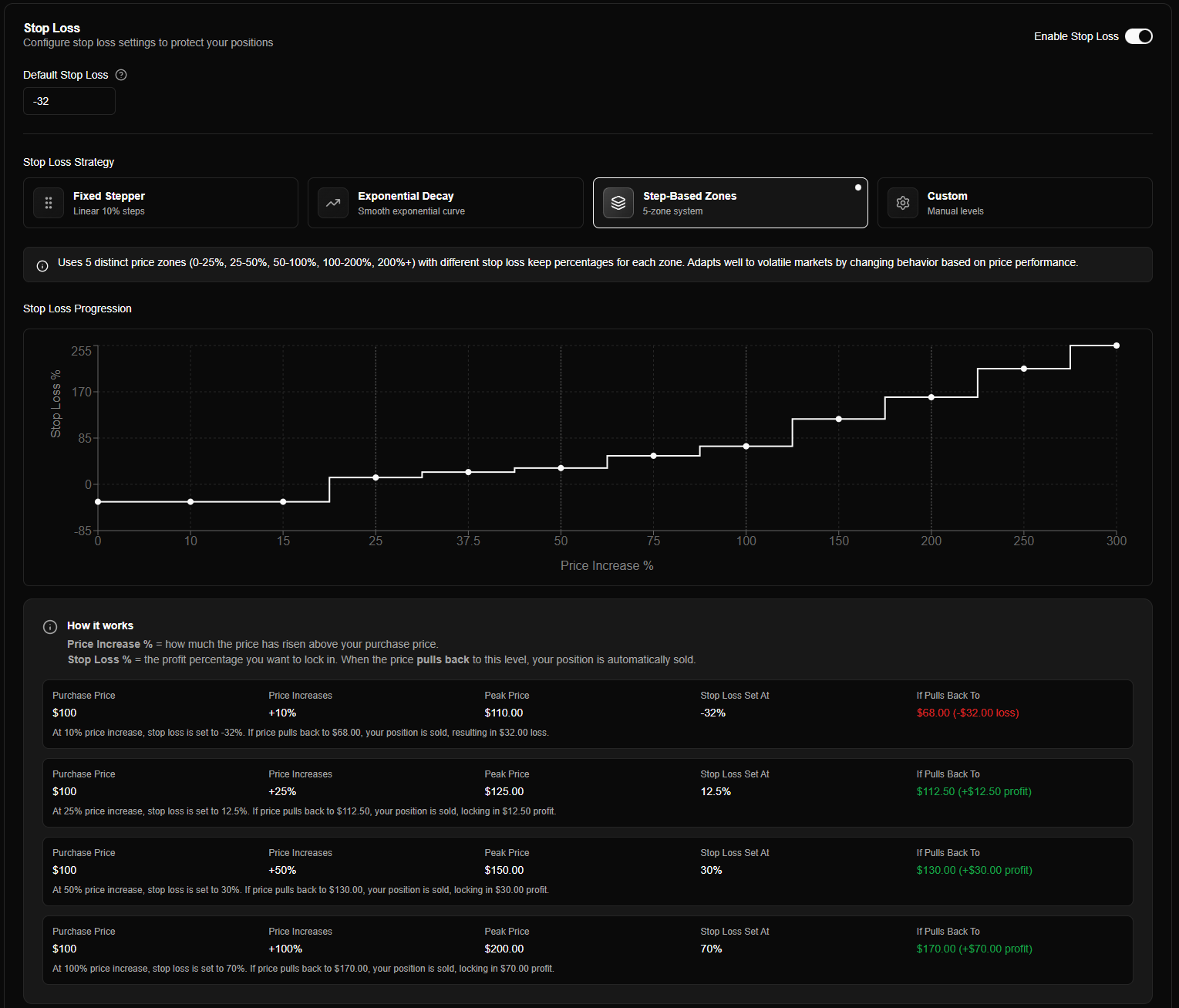
Enabling Stop Loss
The stop loss toggle enables or disables stop loss protection for your agent:
| Setting | Description | Default |
|---|---|---|
| Enable Stop Loss | Turn stop loss protection on/off | Enabled |
When enabled:
- Positions are automatically closed if price drops to stop loss threshold
- Stop loss trails upward as price increases (based on mode)
- Default percentage protects against losses below 20% gain
When disabled:
- Positions remain open regardless of price movement
- No automatic position closures
- Manual position closure only
Disabling stop loss removes automatic loss protection. Only disable if you're manually managing all positions.
Default Stop Loss Percentage
The default stop loss percentage applies when price is below 20% gain or when no trailing level matches (custom mode).
| Setting | Description | Default | Range |
|---|---|---|---|
| Default Percentage | Stop loss percentage below 20% gain (negative = loss from purchase) | -32% | -100% to 0% |
How it works:
- Negative values indicate loss from purchase price
-32= 32% loss = Position closes if price drops 32% from purchase- Applies to positions below 20% gain
- Protects against large losses before trailing begins
Example:
- Purchase price: $1.00
- Default percentage: -32%
- Stop loss price: $0.68 (32% loss)
- If price drops to $0.68 or below → Position closes
The default percentage is your safety net for positions that haven't gained much yet. It prevents stop loss from triggering on normal volatility for small gains.
Stop Loss Modes
Stop loss modes determine how stop loss trails upward as price increases. Choose a mode based on your trading strategy and risk tolerance.
Mode Selection
Four modes are available:
| Mode | Description | Best For |
|---|---|---|
| Fixed Stepper | Linear 10% steps - always 10% behind price | Beginners, predictable behavior |
| Exponential Decay | Smooth exponential curve, loose at low gains, tightens at high gains | Balanced trading, volatile tokens |
| Step-Based Zones | 5-zone system with different protection levels per zone | Volatility-based trading, structured strategies |
| Custom | Manual discrete levels you define with exact thresholds | Advanced users, specific strategies |
Select your mode using the mode selector in the Stop Loss tab. Each mode displays a brief explanation and visual chart when selected.

Mode Details
Fixed Stepper Mode
Behavior: Stop loss moves in fixed 10% increments. Always stays 10% behind current price.
Configuration: No additional configuration needed - the mode handles everything automatically.
Stop Loss Examples:
| Price Gain | Stop Loss | Keep % |
|---|---|---|
| 20% | 10% | 50% |
| 50% | 40% | 80% |
| 100% | 90% | 90% |
| 200% | 190% | 95% |
| Characteristics | Notes |
|---|---|
| Predictable | Always 10% behind |
| Simple | Easy to calculate mentally |
| Can be loose | Only 10% protection at low gains (e.g., 20% gain) |
| Can be tight | 10% gap is small on high gains (e.g., 500% gains) |
Best for: Beginners who want predictable, simple behavior.
See Stop Loss Modes - Fixed Mode for detailed explanation.
Stop Loss Progression Chart
The Stop Loss tab includes a visual chart showing how stop loss progresses as price increases for your selected mode.
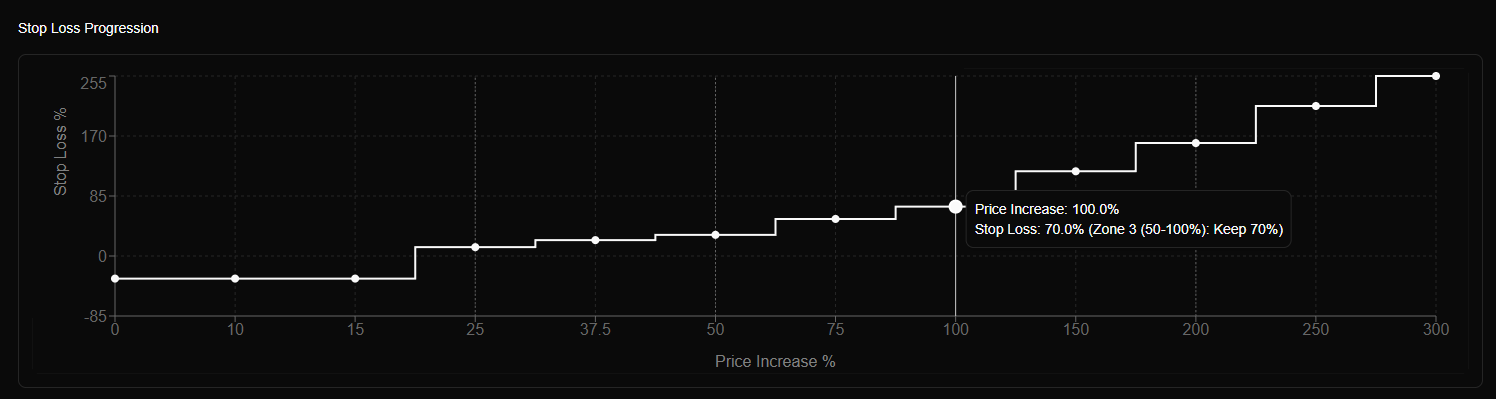
Stop loss progression chart showing how stop loss trails price for the selected mode
The chart shows:
- X-axis: Price gain percentage (0% to 300%)
- Y-axis: Stop loss percentage
- Line: Stop loss progression based on selected mode
- Default zone: Area below 20% gain (uses default percentage)
Use the chart to visualize how tight or loose your stop loss will be at different price levels.
How Stop Loss Works
Two-Phase System
Stop loss operates in two phases:
Phase 1: Default (< 20% gain)
- Uses default percentage (-32% by default)
- Protects against losses
- No trailing behavior
Phase 2: Trailing (≥ 20% gain)
- Uses selected mode to calculate trailing stop loss
- Stop loss moves up with price automatically
- Never moves down (protects maximum achieved profit)
Trailing Behavior
Trailing stop loss means:
- Price increases → Stop loss moves up
- Price decreases → Stop loss stays fixed
- Never moves down → Protects maximum achieved profit
Example:
- Purchase at $1.00
- Price rises to $2.00 (100% gain) → Stop loss at $1.60 (60% gain)
- Price drops to $1.80 → Stop loss still at $1.60
- Price continues to $1.50 → Stop loss triggers (position closes at $1.50)
Real-Time Calculation
Stop loss is calculated on every price update:
- Get current price from price feed
- Calculate price change percentage
- Apply mode formula to calculate stop loss
- Check if current price ≤ stop loss price
- Trigger sale if stop loss is hit
Stop loss calculations happen in real-time with sub-millisecond latency. Positions close automatically the moment price hits the stop loss threshold.
Custom Mode Configuration
When using Custom mode, you must manually configure trailing levels.
Trailing Levels Editor
The trailing levels editor allows you to add, edit, and remove custom stop loss levels:
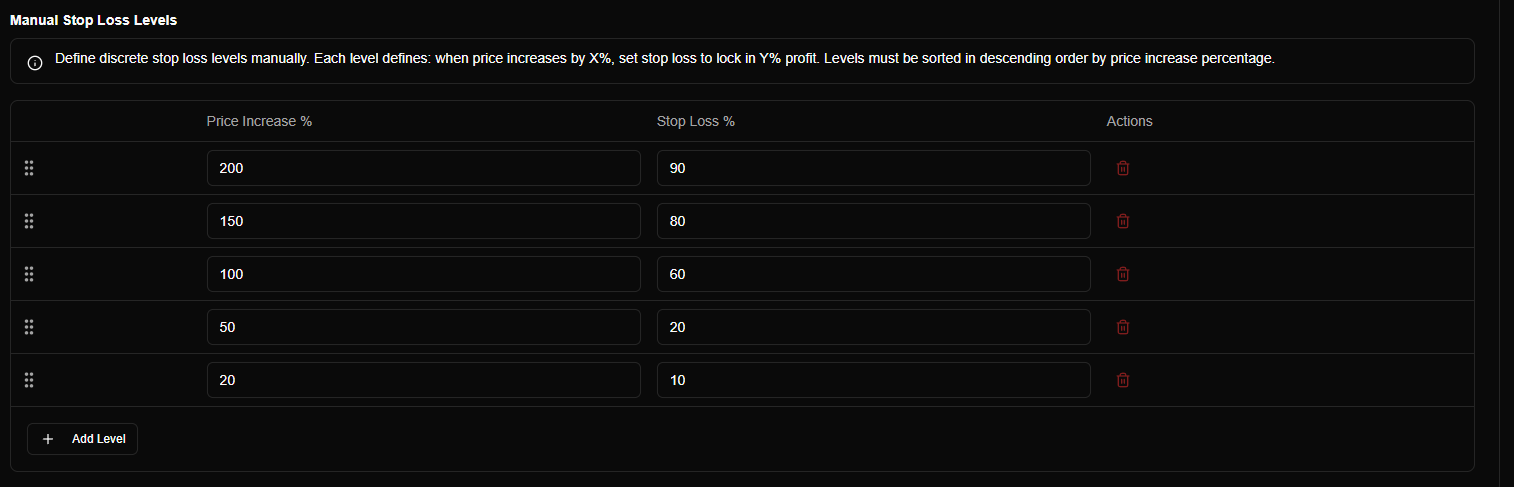
Custom mode trailing levels editor showing manual level configuration
Adding Levels
Each level requires two values:
| Field | Description | Example |
|---|---|---|
| Change (%) | Price gain threshold that triggers this level | 100 (100% gain) |
| Stop Loss (%) | Stop loss percentage to apply when threshold is reached | 60 (60% gain) |
How it works:
- Levels are evaluated from highest to lowest change percentage
- First matching level applies
- If price exceeds a level's change threshold, that level's stop loss is used
Level Requirements
Custom mode has specific requirements:
| Requirement | Details |
|---|---|
| Minimum levels | At least 1 level required when stop loss is enabled |
| Sorting | Levels must be sorted descending by change (highest to lowest) |
| Change range | Change must be positive (0-1000+) |
| Stop loss range | Stop loss must be positive (0-1000+) and less than or equal to change |
Validation:
- System validates levels are sorted correctly
- System validates stop loss ≤ change for each level
- Invalid configurations prevent saving
Example Custom Configuration
Strategy: Lock in profits aggressively at low gains, then protect more as gains increase.
Configuration:
Level 1: Change 200%, Stop Loss 196%  → Keep 98% at 200% gain
Level 2: Change 150%, Stop Loss 135%  → Keep 90% at 150% gain
Level 3: Change 100%, Stop Loss 60%   → Keep 60% at 100% gain
Level 4: Change 50%, Stop Loss 10%    → Keep 20% at 50% gain
Level 5: Change 20%, Stop Loss 2% → Keep 10% at 20% gainBehavior:
- At 20% gain → Stop loss at 2% (very tight)
- At 100% gain → Stop loss at 60% (moderate)
- At 200% gain → Stop loss at 196% (very loose)
Configuration Best Practices
Choosing a Mode
| Use Case | Recommended Mode |
|---|---|
| Beginner trader | Fixed Stepper |
| Balanced approach | Exponential Decay |
| Volatile tokens | Exponential Decay or Step-Based Zones |
| Structured strategy | Step-Based Zones |
| Specific requirements | Custom |
Setting Default Percentage
| Default % | Risk Level | Use Case |
|---|---|---|
| -20% | Low risk | Conservative, protect against small drops |
| -32% | Moderate risk | Balanced (default) |
| -50% | High risk | Allow more volatility, higher potential losses |
Recommendation: Start with -32% (default). Adjust based on token volatility and your risk tolerance.
Custom Mode Tips
- Start simple: Begin with 3-5 levels covering key thresholds (20%, 50%, 100%, 200%)
- Test and iterate: Monitor position closures and adjust levels based on results
- Consider volatility: More volatile tokens may need looser stop loss at lower gains
- Lock profits: Set tighter stop loss at lower gains if you want to lock in profits early
Common Questions
What happens if I disable stop loss?
When disabled:
- Positions remain open regardless of price movement
- No automatic position closures
- You must manually close positions
- No protection against losses
Only disable if you're manually managing all positions or testing without protection.
Can I change stop loss mode after creating positions?
Yes! Changing stop loss mode updates how future price updates are evaluated. Existing positions immediately use the new mode for stop loss calculations.
Does stop loss work in simulation mode?
Yes! Stop loss works identically in both simulation and live modes. Test your stop loss strategy in simulation before going live.