Deposits & Withdrawals
Deposits and withdrawals work differently depending on your trading mode. Simulation wallets use virtual entries, while live wallets require on-chain synchronization.
Overview
| Operation | Simulation Mode | Live Mode |
|---|---|---|
| Deposit | Virtual entry (instant) | External transfer + "Check for deposits" |
| Withdrawal | Not available in dashboard (Security) | Not available in dashboard (Security) |
Simulation Wallets
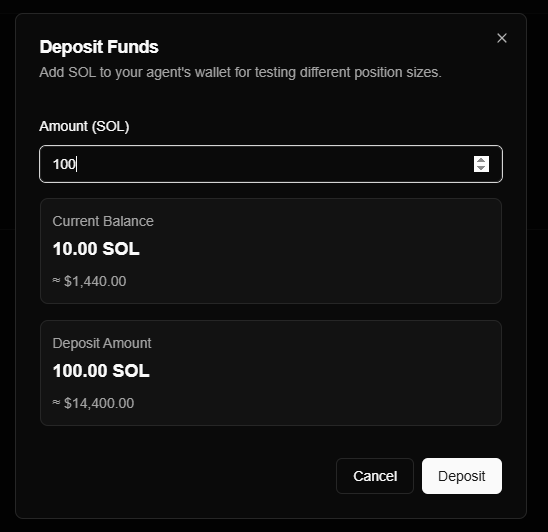
Simulation deposits are instant and virtual. Since no real SOL is involved, these are purely for testing your agent's strategy with different capital levels.
Deposits
- Go to the Wallet page.
- Click Deposit Funds.
- Enter the amount in SOL and click Deposit.
Result: A DEPOSIT record is created, and your virtual balance updates immediately.
Live Wallets
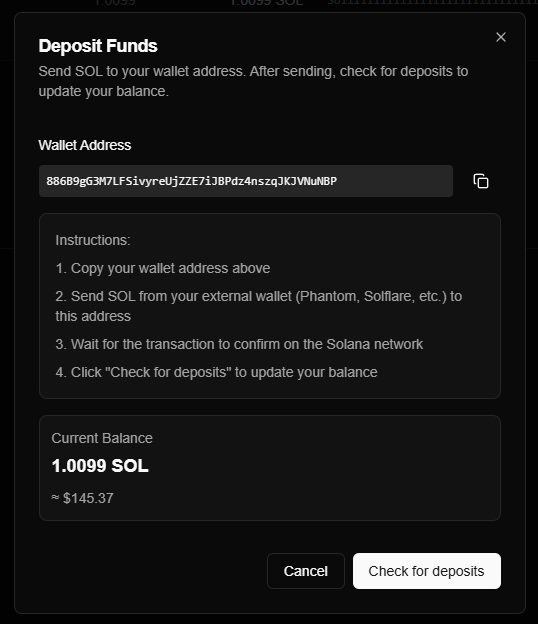
Live deposits require you to send real SOL from an external wallet, then sync that balance with the dashboard.
Deposits (2-Step Process)
| Step | Action |
|---|---|
| 1. Send SOL | Copy your address from the Deposit dialog and send SOL from an external wallet (Phantom, Solflare, etc.). |
| 2. Check Sync | Once the transaction is confirmed on-chain, click "Check for deposits" in the dashboard to sync your internal balance. |
Details:
- The check compares your on-chain balance via RPC with your database balance.
- Deposits below 0.00001 SOL are ignored (dust threshold).
- Always wait for network confirmation (~400ms) before clicking the check button.
Withdrawals (Security by Design)
Withdrawals are not available through the Nexgent dashboard in any mode. This is a critical security feature designed to protect your funds.
Why withdrawals are restricted
For your security, your private keys are stored in your environment variables and are never accessible via the API. This means:
- Hacker Protection: Even if someone compromises your dashboard account, they cannot withdraw your funds because the dashboard has no way to sign a withdrawal transaction.
- Controlled Access: Your SOL stays in your control at all times. Automated agents can sign swaps (trades), but they cannot drain the wallet to an external address.
How to withdraw funds
To move SOL out of your wallet, you must use your primary wallet application:
- Open your wallet app (Phantom, Solflare, or Solana CLI).
- Ensure you have the private key (the one you added to your
.envfile) imported. - Use the app's native send/withdraw function to move your SOL.
Nexgent is designed for trading automation, not as a wallet manager. To actually move SOL, you must use your private key externally in a dedicated wallet app.
Transaction Records
All deposits (and manual balance resets) create a record viewable under Agent Activity:
| Field | Description |
|---|---|
| Type | DEPOSIT or SWAP |
| Amount | SOL amount (and USD value at time of entry) |
| Hash | On-chain transaction hash (live deposits only) |
FAQ & Troubleshooting
Deposits
- Why manual check? It reduces RPC load and gives you control over when the balance syncs.
- Not detected? Ensure the transaction is confirmed on Solscan (opens in a new tab), exceeds 0.00001 SOL, and that you are checking the correct wallet mode (Live).
Withdrawals
- Can I withdraw from the dashboard? No. Withdrawals are disabled for security reasons to ensure your funds can only be moved using your external wallet app.
- What if I need to move funds? Import your private key into a wallet like Phantom and perform the transfer there.
Balance Sync
- Out of sync? If your internal balance is lower than on-chain, trades may fail. Use Check for deposits to reconcile.
- View on-chain balance? The "Check for deposits" response shows both, or you can check Solscan.
Keeping your internal balance in sync ensures that your profit/loss calculations and agent trading limits work correctly.