Manual Close
Manual closure allows you to override automated logic (like stop loss or stale trade rules) and exit a trade immediately. This executes a market sale via the Jupiter Aggregator and updates your balance instantly.
Overview
| Feature | Details |
|---|---|
| Immediate Exit | Executes a market order the moment you confirm. |
| Full Control | Override automation to lock in profits or cut losses early. |
| Real-time Data | Confirmation dialog shows live P&L and token value at current prices. |
| Mode Support | Works in both Simulation (virtual sale) and Live (on-chain sale) modes. |
⚠️
Irreversible: Manual closure is permanent. Once the agent executes the sale, the position cannot be reopened.
How to Close a Position
You can trigger a manual close from two locations on the Dashboard:
- Positions Table: Click the Close Position button on any row.
- Position Details: Click a row to open the details dialog, then click Close Position.
Confirmation Process
When you click the button, a confirmation dialog appears:
- Review Metrics: Check the current P&L, token amount, and indicative market price.
- Currency Toggle: Use the dashboard's currency toggle to switch between SOL and USD views.
- Finalize: Click the red Close Position button to execute.
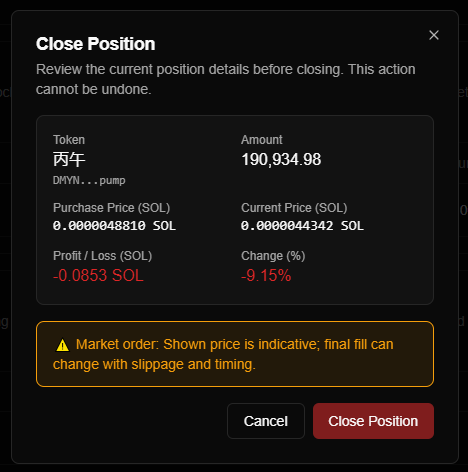
Confirmation dialog showing live position metrics before sale
What Happens on Execution
- Sale: The agent sends a market order to Jupiter. In Live mode, this is a real on-chain transaction.
- Balance: Once the sale completes, your SOL balance is updated in the dashboard.
- Removal: The position is removed from the "Live Agent Trades" table.
- History: A
SWAP(sale) record is created in your Agent Activity history, and a Historical Swap record is created for performance tracking.
Positions with Take-Profit Sales: If the position had partial take-profit sales, manual close sells only the remaining tokens (not the original amount). The final P/L in the historical record combines all realized profit from take-profit sales plus the profit from the manual close.
Manual vs. Automatic Closing
| Feature | Manual Close | Take-Profit (Partial) | Stop Loss / Stale |
|---|---|---|---|
| Trigger | User clicks button | Price rises to level | Price drops / time |
| Amount Sold | All remaining tokens | Configured % of original | All remaining tokens |
| Timing | Any time | When level hit | When rule triggered |
| Position Remains | No | Yes (until all sold) | No |
| Sells Moon Bag | Yes | No (moon bag protected) | Yes (overrides) |
| Execution | Jupiter market order | Jupiter market order | Jupiter market order |
FAQ & Troubleshooting
Price & Slippage
- Indicative Prices: Prices shown in the dialog are estimates. Final execution may vary slightly due to market movement and slippage, especially on illiquid tokens.
- Failed Closure: If a position fails to close, check your wallet balance (for fees) or network status. The position may also have been closed by an automated trigger just as you clicked.
After Closure
- Where are the results? View realized P&L and transaction hashes under Agent Activity.
- Performance: Realized outcomes are immediately added to your agent's Win Rate and Average Return metrics.
- Still showing? If a closed position persists in the table, the WebSocket connection may be lagging. Refresh the page to sync the UI.
Best Practices
- Trust the Strategy: Generally, let your automated stop loss handle exits. Only close manually if the underlying signal or market conditions have fundamentally changed.
- Check Liquidity: For low-cap tokens, review the chart on DexScreener before closing large positions to understand potential price impact.
- Verify Mode: Always double-check if you are in Live or Simulation mode before confirming, as manual closure in Live mode involves real capital.