Creating Wallets
Nexgent uses two wallet types: simulation (for testing) and live (for real trading). Simulation wallets are created automatically; live wallets require manual setup via environment variables.
Overview
| Wallet Type | Creation | Configuration | Use Case |
|---|---|---|---|
| Simulation | Automatic on agent creation | None | Testing |
| Live | Manual | Environment variables | Real trading |
Each agent has one simulation wallet (auto-created) and one live wallet (you assign). Wallets are mode-specific.
Simulation Wallets
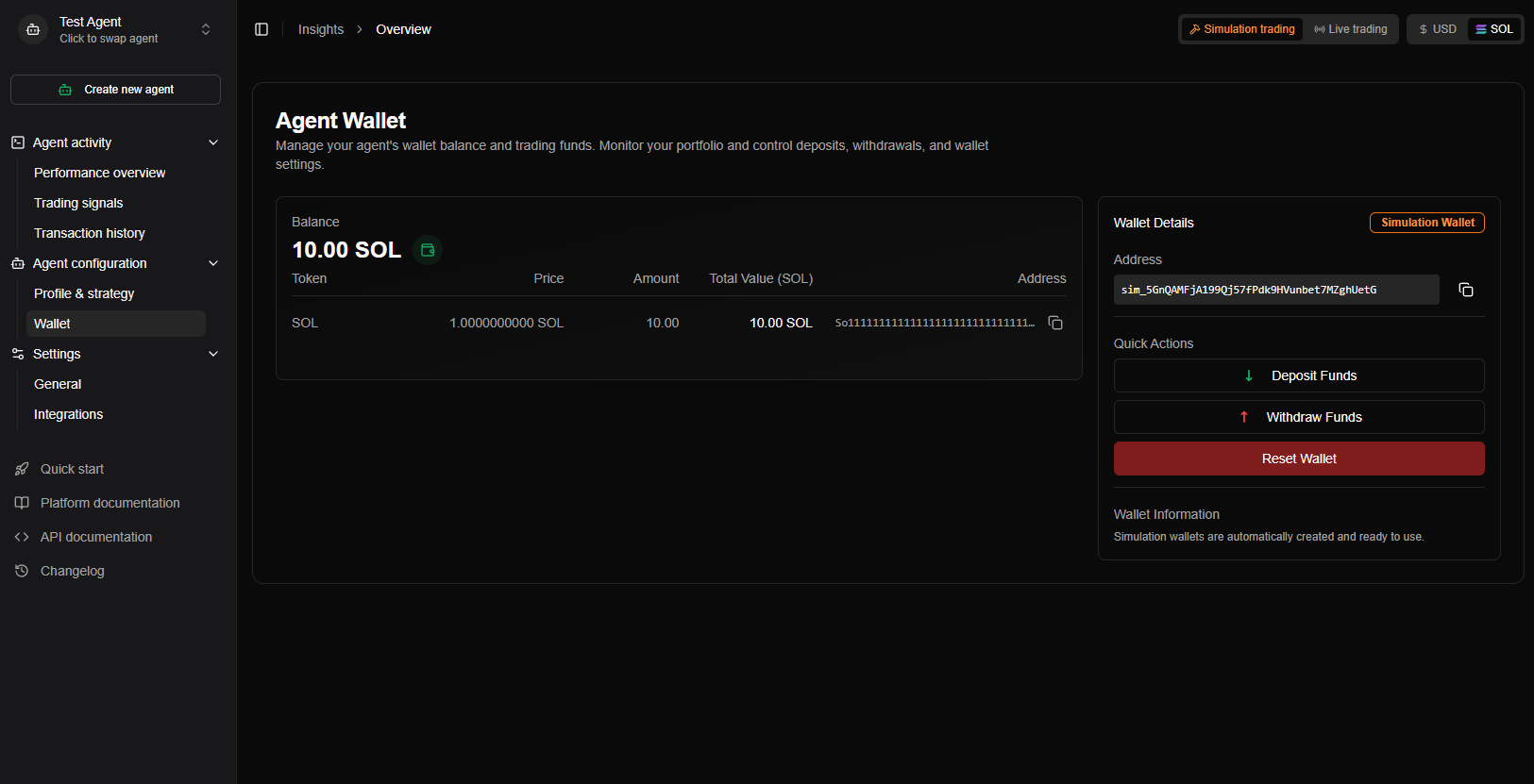
Simulation wallets are created automatically when you create an agent. No setup required.
| Aspect | Details |
|---|---|
| Address | Prefixed with sim_ (e.g., sim_5KJvsngHeM...); invalid as real Solana address, so real SOL cannot be sent to it |
| Private key | Not stored; not needed for simulation |
| Purpose | Virtual trading with no real funds |
Switch to Simulation mode after creating an agent and start testing. The simulation wallet is ready immediately.
Live Wallets
Live wallets require manual configuration: add your private key to environment variables, restart the backend, then assign the wallet to your agent in the dashboard.
Setup at a glance
| Step | Action |
|---|---|
| 1 | Export private key from your wallet (Phantom, Solana CLI, etc.) |
| 2 | Add it to backend .env as WALLET_1, WALLET_2, etc. |
| 3 | Restart the backend |
| 4 | In the dashboard: Agent → Wallet → switch to Live → Assign Wallet → select and confirm |
Step 1: Export your private key
Base58 (Phantom, most wallets): Settings → Security & Privacy → Export Private Key. Use the string as-is (e.g. 5KJvsngHeM...).
JSON array (Solana CLI): Use the keypair file from solana-keygen — a JSON array of 64 numbers.
Full format details and examples are in Private key formats below.
Keep your private key secure. Never commit it to git, share it, or store it in plain text. Use environment variables or a secrets manager.
Private key formats
Live wallets accept Base58 or JSON array. The backend detects the format automatically.
Base58
Base58-encoded string (32- or 64-byte key). Common with Phantom and most wallets.
Example:
WALLET_1="5KJvsngHeMooP2kqH3r7XpN9mFq2wR4tY6uI8oP0aSbCdEfGhIjKlMn"Paste the exported string directly into the env var.
Wallet assignment
- Assign: Links a loaded live wallet to your agent.
- Reassign: Choose a different wallet; the previous one is replaced.
- One per mode: One simulation wallet (auto) and one live wallet (assigned) per agent. Wallets can be shared across agents if you use the same env vars.
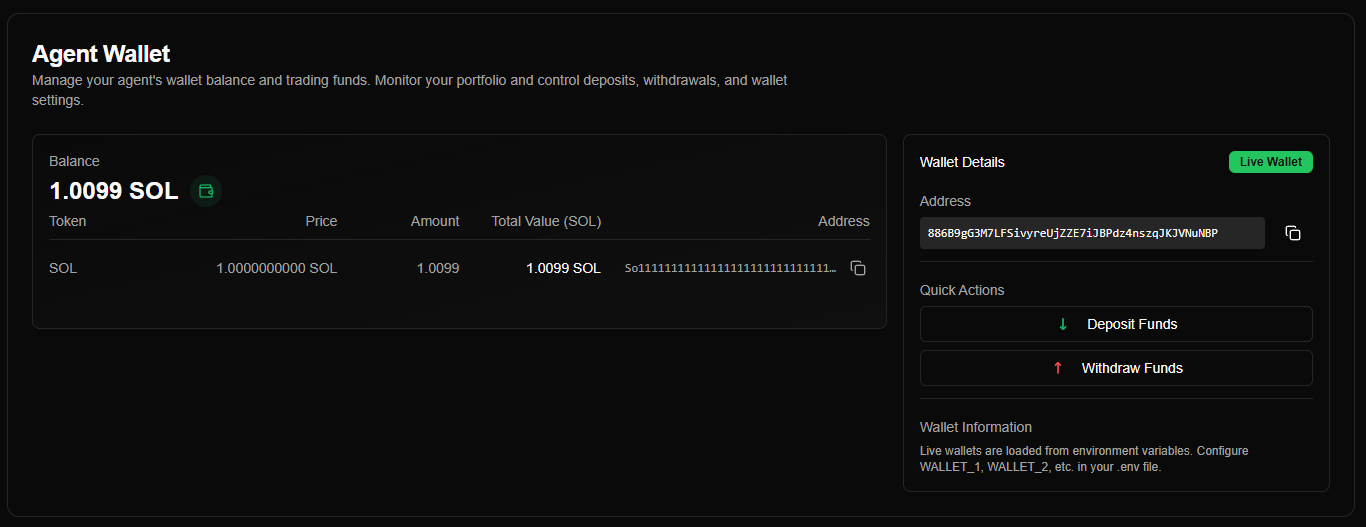
Viewing: On Agent → Wallet, the details card shows address, type (Simulation/Live), balance, and quick actions (deposit and reset).
Security
| Do | Don't |
|---|---|
| Use env vars or a secrets manager | Commit .env or private keys to git |
Restrict access to keys (e.g. chmod 600 on .env on Unix) | Share keys or store in plain text |
| Use platform secrets in production (Railway, AWS, etc.) | Hardcode keys in code |
| Prefer one wallet per agent | Use the same key for many agents (unless you accept the risk) |
Troubleshooting
Wallet not in “Assign Wallet” dropdown
Check: (1) WALLET_1, etc. in .env, (2) backend restarted after changes, (3) no loading errors in logs. Verify key format (Base58 or JSON) matches Private key formats.
Common questions
Simulation: Created automatically with each agent. You can’t use a real Solana address for simulation; sim_ addresses prevent accidental real transfers. Resetting the simulation wallet clears tokens; the wallet itself stays.
Live: You can use simulation first and assign a live wallet later. Use WALLET_1, WALLET_2, … for multiple wallets. Assigning a new wallet replaces the previous one. Removing a wallet from env vars stops new assignments; existing assignments and positions may be affected until you reassign or restore it.
Security: Private keys are not stored in the database; they’re read from env vars at startup. To rotate: create a new wallet, add it to env, assign it in the dashboard, then remove the old key from env and restart.