Auto Trade Configuration
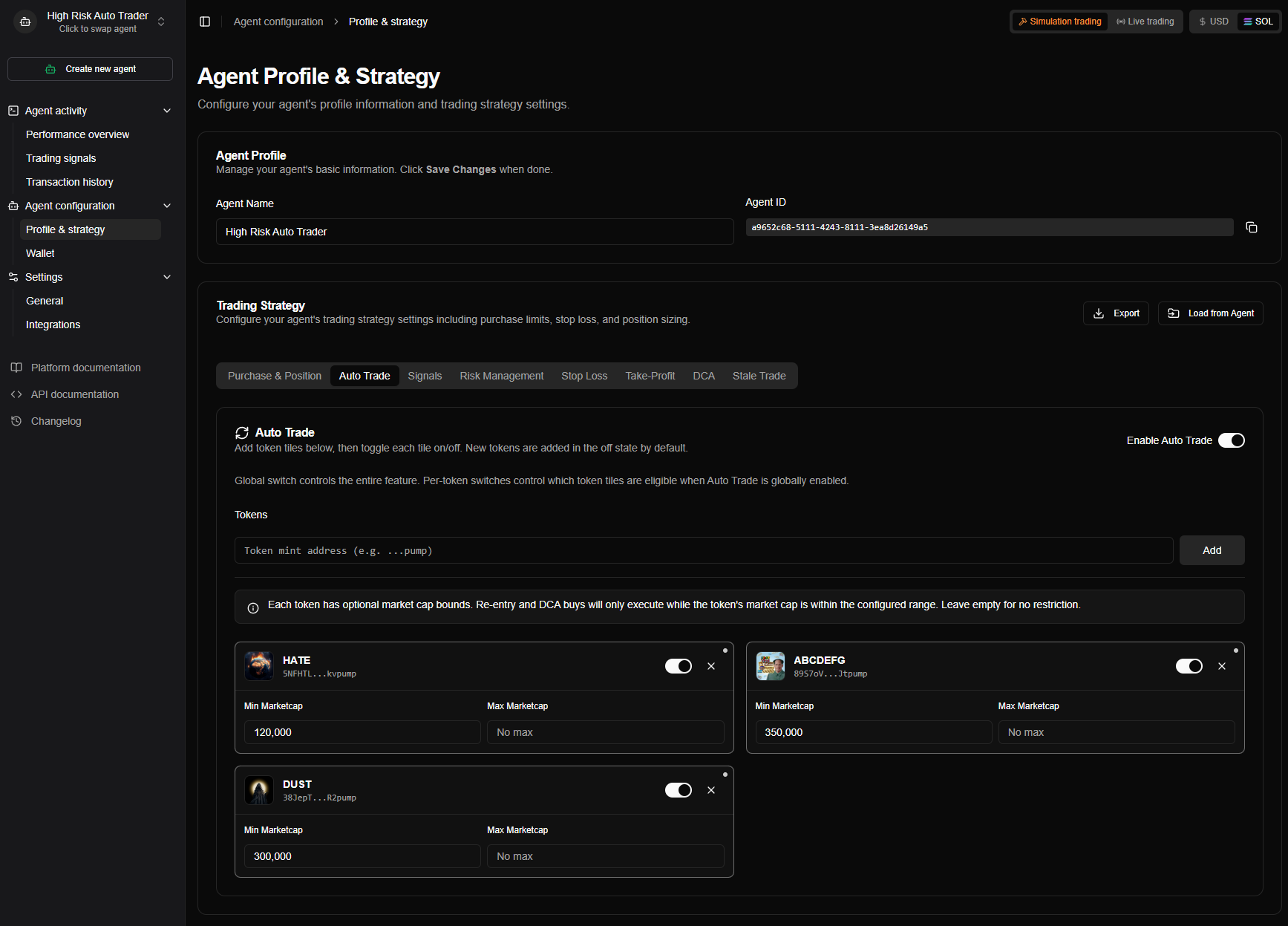
Auto Trade automatically re-purchases tokens when their positions close. Add tokens to a list, toggle each one on or off, and set optional market-cap bounds per token. When a position closes for an enabled token, the engine immediately opens a new position using the agent's standard position sizing.
Overview
Auto Trade configuration consists of:
- Global Enable/Disable — Master switch for the entire feature
- Token List — Add token mint addresses to track
- Per-Token Toggle — Enable or disable auto-trade individually per token
- Market-Cap Bounds — Optional min/max market cap per token
Access auto trade configuration in Agent Configuration > Trading Strategy > Auto Trade tab.
How Auto Trade Works
Auto Trade combines two mechanisms that work together to keep positions open for your selected tokens:
Re-entry on Position Close
When any position closes (stop loss, take profit, stale trade, or manual close), the engine checks whether auto trade is enabled for that token. If it is, a new purchase executes immediately.
Flow:
- Position closes for token (any close reason)
- Engine checks: is auto trade globally enabled?
- Engine checks: is this token enabled in the auto-trade list?
- Engine checks: does the token's market cap pass the configured bounds?
- If all checks pass → execute purchase using the agent's standard position size
Re-entry is event-driven and happens within seconds of a position closing. The purchase uses your agent's normal position sizing rules (balance category, min/max, randomization).
Reconciliation (Background Check)
A background process runs every 10 minutes to catch any gaps — for example, if a re-entry was missed due to a server restart or a transient error.
What it does:
- Scans all active agents with auto trade enabled
- For each enabled token, checks if an open position exists
- If no position exists and market-cap bounds pass → opens one
This ensures that enabled tokens always have an active position, even if the event-driven re-entry was missed.
Enabling Auto Trade
| Setting | Description | Default |
|---|---|---|
| Enable Auto Trade | Global switch for the entire feature | Disabled |
The global switch controls the entire auto-trade feature. When disabled, no re-entry or reconciliation runs for any token, regardless of per-token settings.
When enabled:
- Positions are automatically re-opened when they close for enabled tokens
- Background reconciliation ensures enabled tokens always have positions
- Market-cap bounds are enforced on every purchase
When disabled:
- No automatic re-entry after position close
- No background reconciliation
- Per-token settings are preserved but inactive
Token List
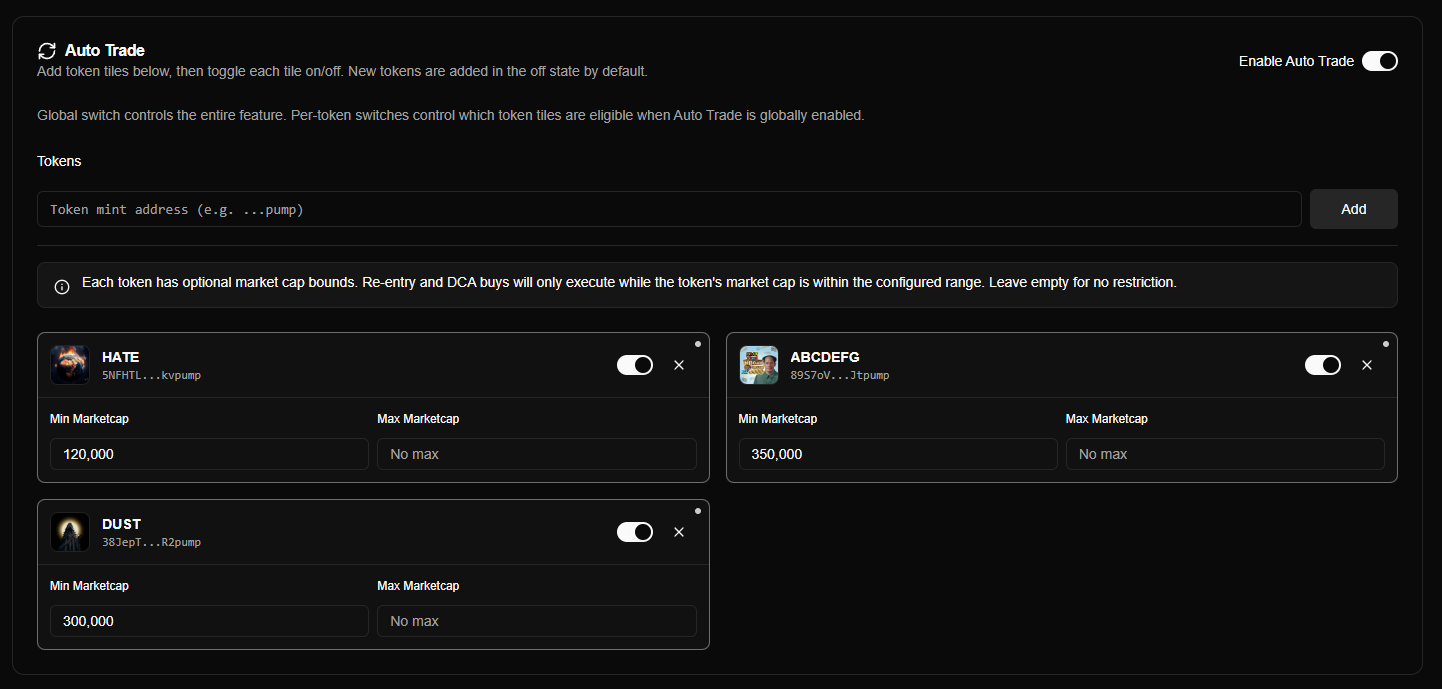
Add tokens by entering their Solana mint address. The engine resolves the token symbol and logo automatically.
| Field | Description |
|---|---|
| Token Mint Address | The Solana token address (32–44 characters) |
| Symbol | Resolved automatically from on-chain data |
| Per-Token Toggle | Enable/disable auto-trade for this specific token |
Adding a token:
- Paste the token's mint address into the input field
- Click Add (or press Enter)
- The engine resolves the token symbol and logo
- The token appears as a tile in the off state by default
New tokens are always added in the off state. Toggle them on when you're ready to start auto-trading.
Removing a token:
Click the X button on a token tile to remove it from the list.
Per-Token Toggle
Each token has its own on/off switch, independent of the global enable:
| Global Switch | Per-Token Switch | Result |
|---|---|---|
| On | On | Auto-trade active for this token |
| On | Off | Auto-trade inactive for this token |
| Off | On or Off | Auto-trade inactive for all tokens |
This lets you prepare a token list and selectively activate tokens without removing them.
Market-Cap Bounds
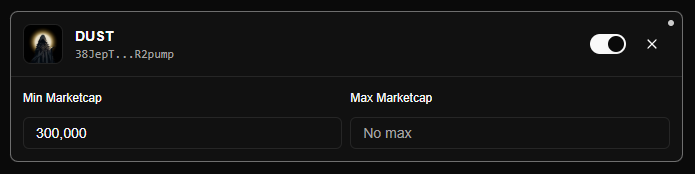
Each token tile has optional Min Marketcap and Max Marketcap fields (in USD). These control whether re-entry and reconciliation purchases are allowed based on the token's current market cap.
| Setting | Description | Default |
|---|---|---|
| Min Marketcap | Minimum market cap (USD) for auto-trade to proceed | No minimum |
| Max Marketcap | Maximum market cap (USD) for auto-trade to proceed | No maximum |
How bounds work:
- Before every auto-trade purchase, the engine fetches the token's current market cap from Jupiter
- If the market cap is below the minimum → purchase is skipped
- If the market cap is above the maximum → purchase is skipped
- If the market cap is within range → purchase proceeds
- If market-cap data is unavailable and bounds are configured → purchase is skipped (fail-closed)
- If no bounds are set → purchase always proceeds (no restriction)
Examples:
| Min | Max | Behavior |
|---|---|---|
| (empty) | (empty) | No market-cap check; always proceeds |
| $100,000 | (empty) | Only buy if market cap ≥ $100K |
| (empty) | $10,000,000 | Only buy if market cap ≤ $10M |
| $100,000 | $10,000,000 | Only buy if market cap is between $100K and $10M |
Market-cap bounds use a fail-closed policy. If bounds are configured but the market cap cannot be fetched (e.g., Jupiter API is temporarily unavailable), the purchase is skipped to avoid buying outside your intended range.
Execution Guardrails
Auto-trade purchases go through the same guardrails as any other trade. A purchase is skipped (not treated as an error) if any of these conditions apply:
| Guardrail | Behavior |
|---|---|
| Insufficient balance | Agent balance too low to open a position |
| Below minimum threshold | Balance below the agent's minimum trading balance |
| Position already exists | An open position for this token already exists |
| Max positions exceeded | Agent has reached its maximum number of open positions |
| Price impact too high | Estimated price impact exceeds the agent's configured limit |
These are expected outcomes — the engine logs them at info level and moves on. No intervention is needed.
Wallet Reset
When a wallet is reset, existing positions are closed. Auto-trade intentionally ignores close events from a wallet reset to avoid immediately repurchasing into positions that were just cleared.
Auto Trade Signals
Each auto-trade re-entry creates a synthetic trading signal with:
| Field | Value |
|---|---|
| Signal Type | Auto-trade |
| Source | Trading Engine |
| Signal Strength | 3 |
| Activation Reason | Auto-trade re-entry after position close |
These signals appear in your Trade Signals page and link to the resulting position, so you can track auto-trade activity alongside regular signal-driven trades.
Configuration Examples
Basic Auto Trade
Enable auto-trade for a single token with no market-cap restrictions.
Setup:
- Enable the global Auto Trade switch
- Add the token's mint address
- Toggle the token tile on
- Leave Min/Max Marketcap empty
Behavior: Every time the position closes (stop loss, take profit, stale trade, or manual), it immediately re-opens using your standard position size.
How Auto Trade Interacts with Other Features
Auto Trade works alongside your other trading settings — it controls when to re-enter, while other settings control how positions are managed once open.
| Feature | Interaction |
|---|---|
| Stop Loss | Closing a position via stop loss triggers auto-trade re-entry |
| Take Profit | Final take-profit close triggers auto-trade re-entry |
| DCA | DCA operates normally on auto-trade positions (buys on dips) |
| Stale Trade | Closing a stale position triggers auto-trade re-entry |
| Position Sizing | Auto-trade purchases use the agent's standard position sizing rules |
| Price Impact | Auto-trade purchases respect the agent's price impact protection |
| Signals | Auto-trade bypasses signal filtering (it creates its own synthetic signals) |
Common Questions
What happens if I disable auto trade?
All re-entry and reconciliation stops immediately. Existing open positions are not affected — they continue to be managed by stop loss, take profit, DCA, and stale trade as normal. Your token list and per-token settings are preserved.
Does auto trade work in simulation mode?
Yes. Auto trade works identically in both simulation and live modes. Test your token list and market-cap bounds in simulation before going live.
How quickly does re-entry happen?
Re-entry is event-driven and typically executes within seconds of a position closing. The 10-minute reconciliation loop is a safety net, not the primary mechanism.